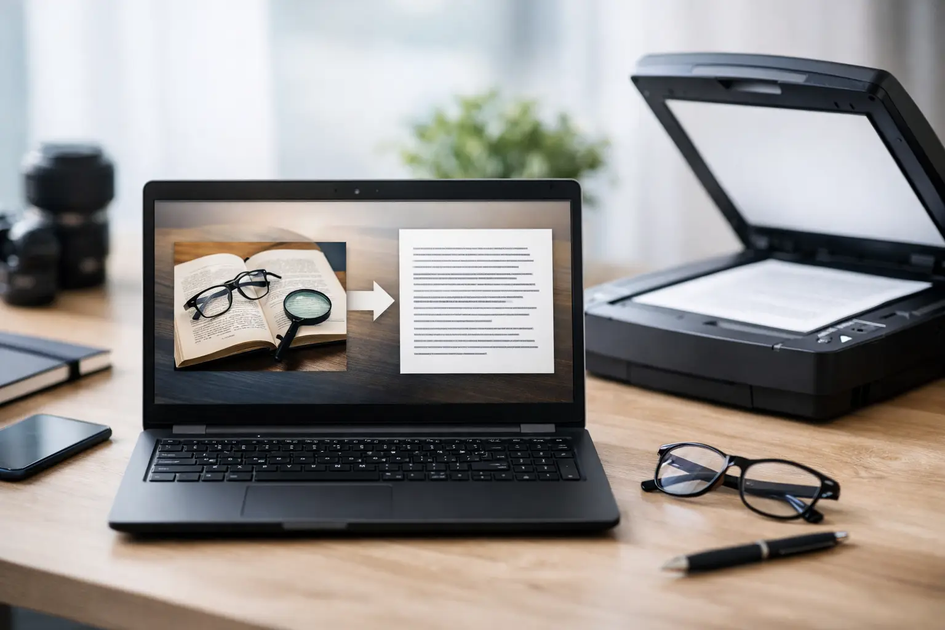
A blurry invoice photo, a screenshot of product specs, a scanned class handout - most people do not realize how much useful text gets trapped inside images until they need to copy it. That is where an image to text converter becomes a practical everyday tool. Instead of retyping lines by hand, you can pull text from screenshots, scans, receipts, notes, and documents in seconds.
For small businesses, students, bloggers, and marketers, this is not a niche feature. It is a time-saver that removes busywork. If your day includes editing content, collecting research, processing documents, or moving information from one format to another, OCR can speed things up immediately.
What an image to text converter actually does
An image to text converter uses OCR, or optical character recognition, to detect letters and words inside an image file and turn them into editable text. In plain terms, it reads what is shown in a screenshot, scanned page, or photo and converts that content into text you can copy, edit, paste, or save.
That sounds simple, but the quality of the output depends on the quality of the image. A clean PDF scan with dark text on a white background is much easier to read than a phone photo taken at an angle in poor lighting. The tool matters, but the source image matters too.
This is why good OCR is not just about recognition. It is also about speed, formatting, and accuracy. Some tools only grab plain text. Others do a better job with spacing, line breaks, tables, or mixed layouts. The right choice depends on what you need to do next with the extracted content.
Why people use an image to text converter
The biggest reason is obvious - it saves time. Manually typing text from an image is slow, repetitive, and easy to get wrong. OCR cuts that process down to a few clicks.
But speed is only part of the value. Searchability matters too. Once text is extracted, you can search it, edit it, translate it, optimize it, or move it into another document. That is useful if you are working with archived files, old notes, printed forms, or website screenshots.
For marketers and SEO users, this can help when collecting competitor snippets, reading text from image-based assets, or repurposing printed material into web-friendly copy. For ecommerce sellers, it can help pull text from packaging, invoices, labels, or supplier documents. For students, it can turn textbook photos and lecture slides into editable notes. For small teams, it reduces admin friction without adding software costs.
Common use cases that make OCR worth it
A practical image to text converter earns its place when it solves routine problems fast. One of the most common examples is screenshots. If you have ever copied a quote, product detail, ad variation, or blocked paragraph from a screenshot, you already know the pain of manual typing.
Scanned paperwork is another big one. Contracts, receipts, application forms, printed reports, and meeting notes often arrive as image files or scans. Converting them into text makes them easier to organize and reuse.
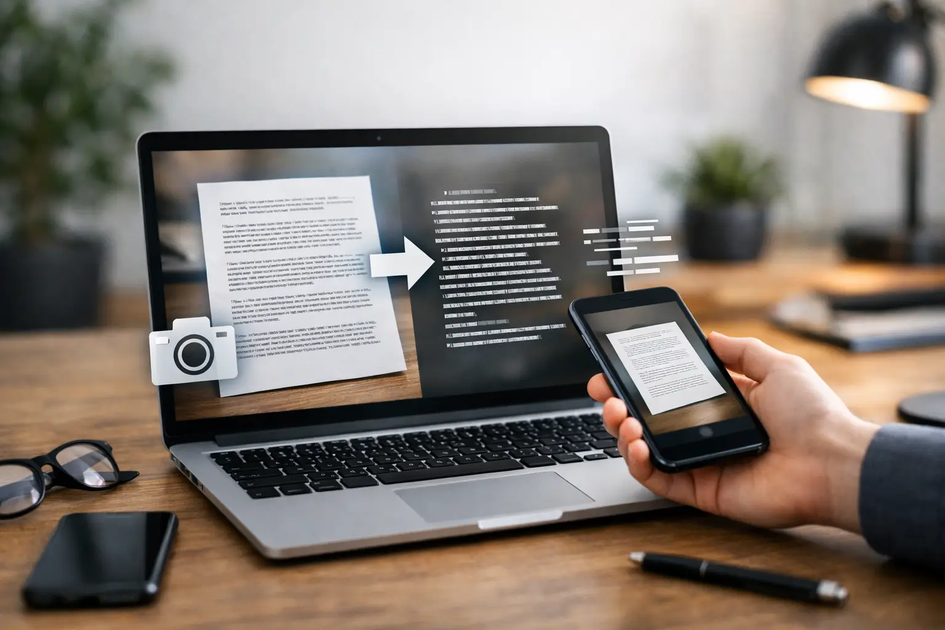
Then there are phone photos. People photograph whiteboards, posters, handwritten reminders, shipping labels, and printed pages all the time. OCR gives those images more value because the content becomes editable instead of staying locked inside a photo gallery.
This is also useful for content production. Writers and editors often gather source material from PDFs, scans, or image snippets. Pulling the text quickly keeps the workflow moving.
How to get better results from an image to text converter
Not every image will produce perfect text on the first try. OCR works best when the image is clean and readable. If you want stronger output, a few basics make a real difference.
Start with image quality. Use a clear file with sharp lettering and decent contrast. Dark text on a light background is easiest to process. If you are taking a photo, keep the camera straight and avoid shadows across the page.
Keep the content simple where possible. Busy backgrounds, decorative fonts, overlapping elements, and extreme compression can all reduce accuracy. If you can crop the image before uploading it, remove anything that is not needed.
Check the layout after conversion. Even strong OCR can struggle with columns, tables, unusual formatting, and handwritten text. If you are converting something important, give the result a quick proofread before using it in a report, article, or customer-facing document.
When OCR accuracy drops
There is no point pretending every converter works perfectly on every file. OCR is useful, but it has limits.
Handwriting is one of the biggest variables. Neat block letters may convert well, while rushed cursive may not. Low-resolution screenshots can also cause trouble, especially when small fonts are involved. Stylized typefaces, bent pages, and colored backgrounds create more room for errors.
Multilingual text can be another factor. Some tools handle multiple languages better than others, and some perform well with standard printed English but struggle once the text includes special characters or mixed language content.
That does not make OCR unreliable. It just means expectations should match the file. If you are converting a clean printed document, results are usually strong. If you are trying to read a dimly lit receipt photo with tiny text, some cleanup may still be needed.
Choosing the right image to text converter
A good tool should feel immediate. Upload the image, run the conversion, and get editable text without extra steps, downloads, or registration barriers. That matters when you are trying to finish a task quickly rather than learn new software.
Speed is important, but usability matters just as much. A converter should support common file types, handle everyday document images well, and present the extracted text clearly. If the output is cluttered or hard to copy, the time saved disappears.
Privacy can matter too, depending on the document. If you are converting invoices, personal records, or internal business files, choose tools with a straightforward, browser-based workflow that fits the sensitivity of your task.
For many users, cost is part of the decision. That is why free, user-friendly tools are appealing. If you only need OCR occasionally or want fast results without committing to premium software, a browser-based option is often the most efficient route. Platforms like Small SEO Tools UK fit that need well because they focus on quick task completion rather than bloated setup.
OCR for business, content, and study workflows
The real benefit of an image to text converter is not the conversion itself. It is what happens after. Once text is editable, you can move faster across a lot of routine work.
A business owner can extract text from receipts and supplier documents to simplify records. A blogger can pull notes from screenshots and turn them into drafts. A student can convert class materials into searchable revision notes. An SEO specialist can capture text from image-heavy references and reuse it in research or optimization workflows.
This is where browser-based utility tools stand out. They remove the gap between spotting a problem and solving it. No software install, no long learning curve, no waiting around for desktop processing. Just upload, convert, and continue working.
What to expect from the output
In most cases, you should expect strong plain-text extraction from clear printed images. That covers a huge amount of everyday use. If your image includes structured content like tables, forms, or multi-column layouts, results may still be useful, but some reformatting is normal.
That is not a flaw so much as a trade-off. OCR is excellent at reducing manual effort, even when it does not preserve every visual detail perfectly. If your priority is getting editable words quickly, it delivers real value. If your priority is pixel-perfect document recreation, you may need extra formatting work afterward.
The smart approach is to treat OCR as a productivity tool first. Let it handle the heavy lifting, then make light edits where needed. That balance saves far more time than starting from scratch.
An image to text converter is one of those tools that proves its value the moment you use it on a real task. If text is stuck in a screenshot, scan, or photo, there is no reason to retype it line by line when a faster option is already available.




 ™
™